
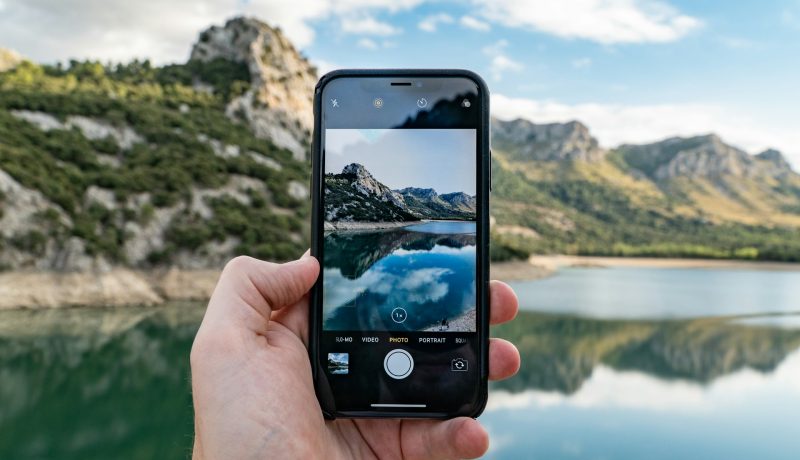
How to edit photos in mobile like a professional?
You can edit photos on a mobile like a professional by following a simple workflow:
Table Of Content
1. Start with a Good Editing App
Popular mobile apps include:
- Adobe Lightroom Mobile
- Snapseed
- PicsArt
- VSCO
2. Crop and Straighten
- Remove distractions from the edges.
- Straighten horizons and buildings.
- Use the rule of thirds for better composition.
3. Adjust Light First
Edit in this order:
- Exposure (brightness)
- Contrast
- Highlights (reduce if sky is too bright)
- Shadows (increase to reveal details)
- Whites and Blacks
4. Improve Colors
- Increase Vibrance slightly.
- Adjust Saturation carefully.
- Fine-tune Temperature (warm/cool tones).
- Correct Tint if colors look unnatural.
5. Add Detail
- Increase Clarity or Structure slightly.
- Sharpen the image moderately.
- Use noise reduction for low-light photos.
6. Selective Editing
- Brighten faces without affecting the background.
- Darken distracting areas.
- Enhance important subjects using masks or brushes.
7. Retouch Carefully
- Remove unwanted objects.
- Fix blemishes if needed.
- Avoid excessive skin smoothing.
8. Create Depth
- Add a subtle vignette.
- Use background blur when appropriate.
- Enhance subject separation.
9. Use Presets Wisely
- Apply a preset/filter as a starting point.
- Adjust manually afterward instead of relying entirely on the filter.
10. Keep It Natural
A common professional rule:
- If viewers immediately notice the editing, it may be too much.
- Aim for clean, realistic enhancements.
Quick Professional Formula
Crop → Exposure → Contrast → Highlights/Shadows → Color → Sharpness → Retouch → Export
With regular practice, apps like Lightroom Mobile or Snapseed can produce results that look close to professional camera edits.
Last Update:
June 1, 2026




No Comment! Be the first one.